OpenClaw + Ollama Setup Guide: Build Your Self-Hosted AI Agent (Zero API Costs)
Imagine having an AI assistant that doesn't just chat—but actually does things for you. It can read your files, execute commands, send messages on your behalf, and integrate with your favorite messaging apps like WhatsApp and Telegram. All running locally on your machine, with zero API fees, and complete data privacy.
That's exactly what OpenClaw delivers. Unlike ChatGPT or other cloud AI tools that simply respond to prompts, OpenClaw is a full-fledged AI agent framework that can take real actions on your computer. Paired with Ollama for local LLM execution, you get a powerful automation system that works entirely offline.
In this guide, you'll learn how to build this system using FlyEnv—the fastest way to get OpenClaw and Ollama running without complex Docker setups or manual configuration.
What You'll Build
By the end of this guide, you'll have:
- A self-hosted AI agent gateway running on your machine
- Integration with messaging apps (WhatsApp, Telegram, Discord, iMessage, and more)
- Local LLM processing through Ollama—no API keys, no usage limits
- An agent that can read/write files, execute commands, and automate tasks
- Complete data privacy—your messages and files never leave your hardware
What is OpenClaw?
OpenClaw is an open-source, self-hosted gateway that connects your messaging apps to AI coding agents. Think of it as a bridge between where you communicate (WhatsApp, Telegram, etc.) and an AI that can actually perform tasks.
Key Capabilities
| Feature | Description |
|---|---|
| Multi-Channel | Connect WhatsApp, Telegram, Discord, iMessage, Slack simultaneously |
| Tool Use | Read/write files, execute shell commands, make HTTP requests |
| Session Management | Persistent conversations with context across sessions |
| Memory | Agent remembers past interactions and preferences |
| Multi-Agent Routing | Route different tasks to specialized agents |
OpenClaw vs ChatGPT
| Capability | ChatGPT | OpenClaw + Ollama |
|---|---|---|
| Action Execution | Text only | Files, commands, messages |
| Messaging Integration | None | WhatsApp, Telegram, Discord, etc. |
| Data Privacy | Cloud processed | 100% local |
| API Costs | Per-token fees | Zero (after setup) |
| Offline Use | No | Yes |
Prerequisites
Before starting, ensure you have:
- FlyEnv installed (Download here)
- 8GB+ RAM (16GB recommended for larger models)
- ~10GB free disk space for model storage
- A messaging app account (WhatsApp, Telegram, or Discord)
Step 1: Install Node.js 24
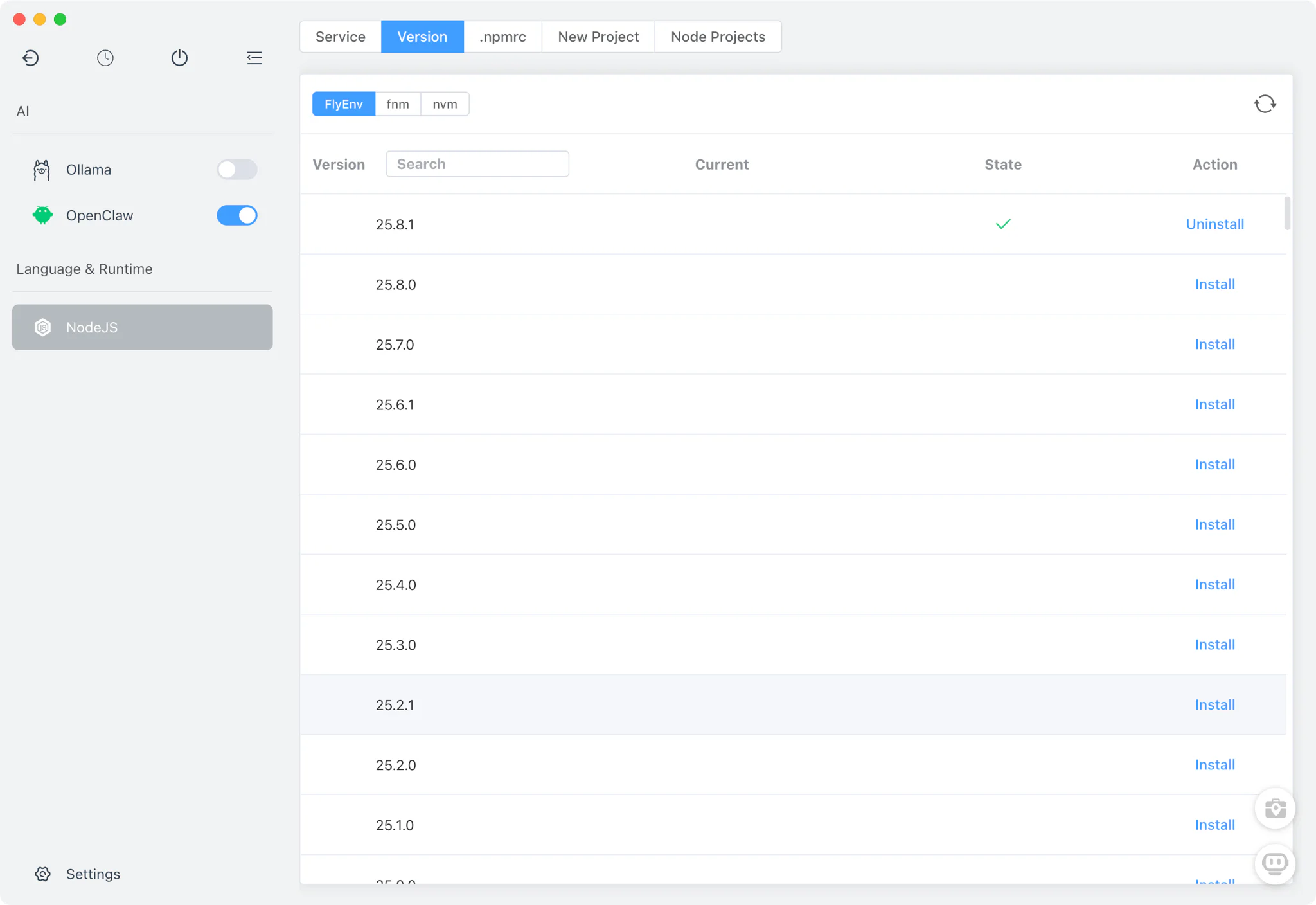
OpenClaw requires Node.js 24 (or Node.js 22 LTS 22.16+ for compatibility).
- Open FlyEnv and navigate to the Node.js section
- Select Node.js 24 from the version list (recommended)
- Click Install and wait for completion
- Set Node.js 24 as your active version
FlyEnv Advantage: Unlike manual Node.js installation, FlyEnv automatically handles PATH configuration and version switching. No more
command not founderrors.
Step 2: Install Ollama
Ollama powers the AI brain of your OpenClaw agent.
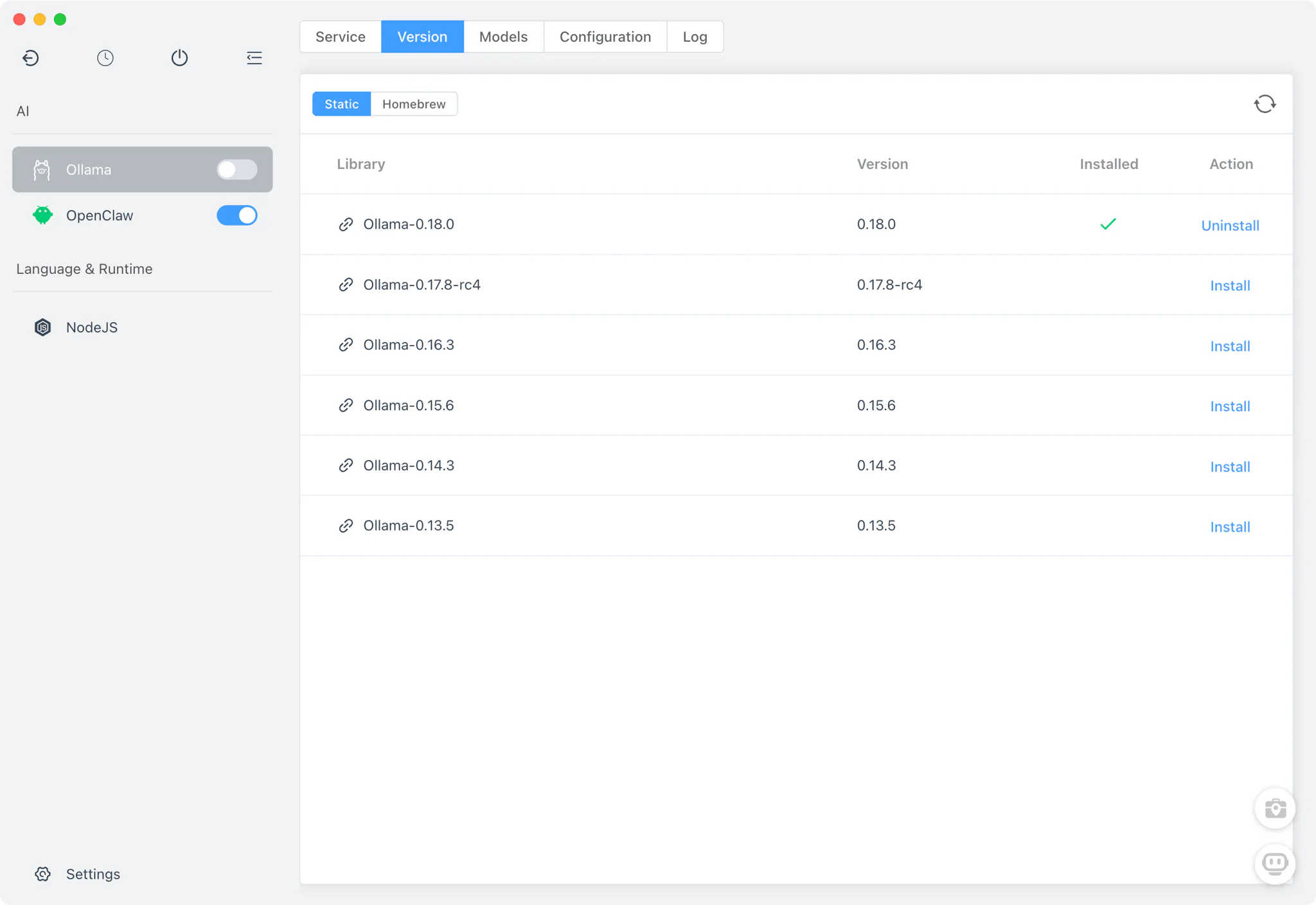
- In FlyEnv, open the Library/Tools section
- Find Ollama in the available applications
- Click Install—FlyEnv handles all dependencies automatically
- Start the Ollama service
Step 3: Download an AI Model
Choose a model based on your hardware capabilities:
For 8-16GB RAM Systems
| Model | Size | Best For |
|---|---|---|
qwen2.5-coder:7b | ~4GB | Code generation, technical tasks |
llama3.2 | ~4GB | General purpose, reasoning |
deepseek-r1:7b | ~4GB | Step-by-step reasoning |
For 16GB+ RAM or GPU Systems
| Model | Size | Best For |
|---|---|---|
qwen2.5-coder:32b | ~20GB | Complex coding, large context |
gpt-oss:20b | ~12GB | Tool use, agent tasks |
glm-4.7-flash | ~25GB | Advanced reasoning |
Download via FlyEnv
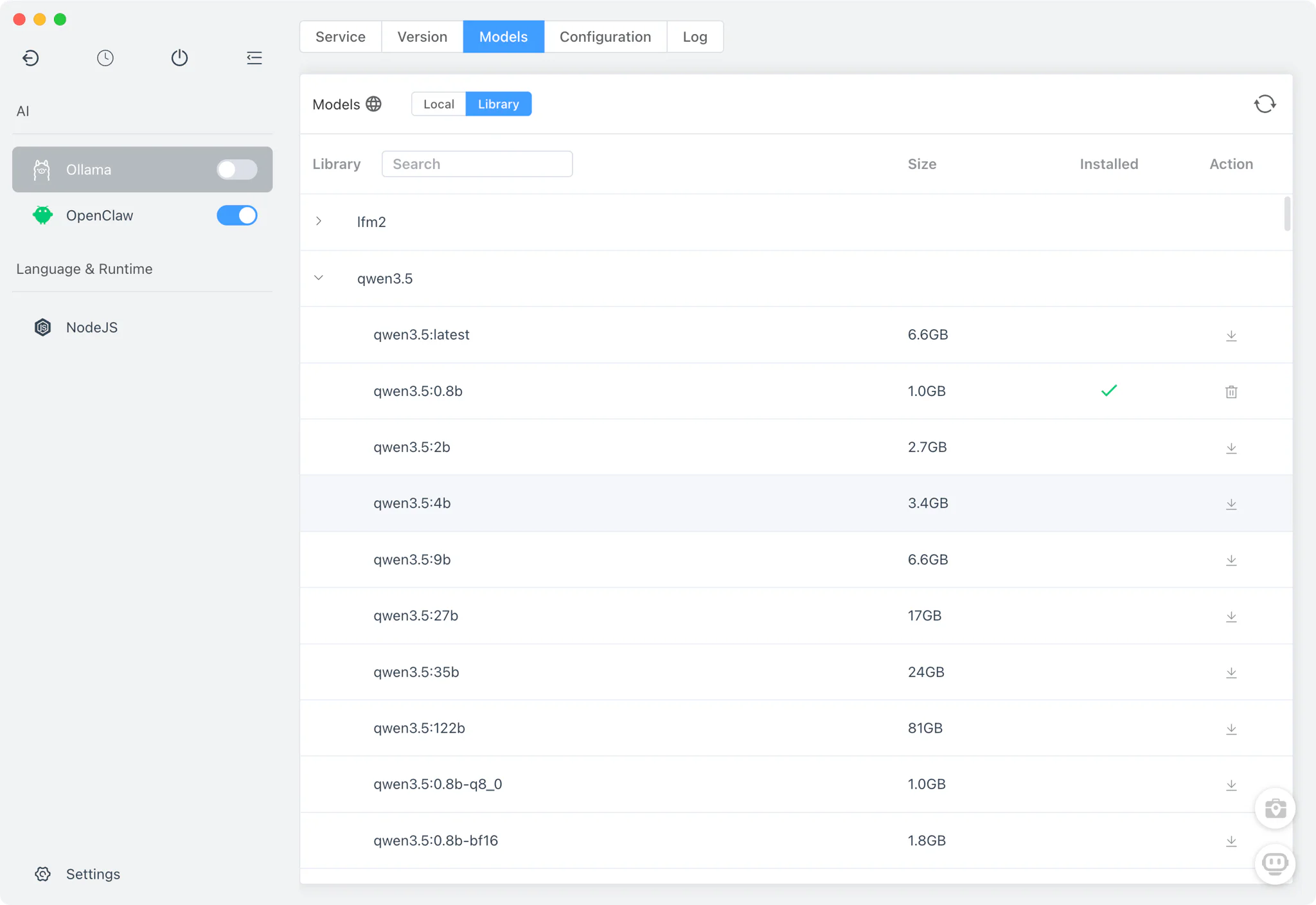
- Navigate to Ollama Models in FlyEnv
- Select your preferred model from the list
- Click Download and wait for completion
Recommendation: Start with
qwen2.5-coder:7bfor testing. It's fast, capable, and works well on most systems.
Step 4: Install OpenClaw
Now install the gateway that connects everything:
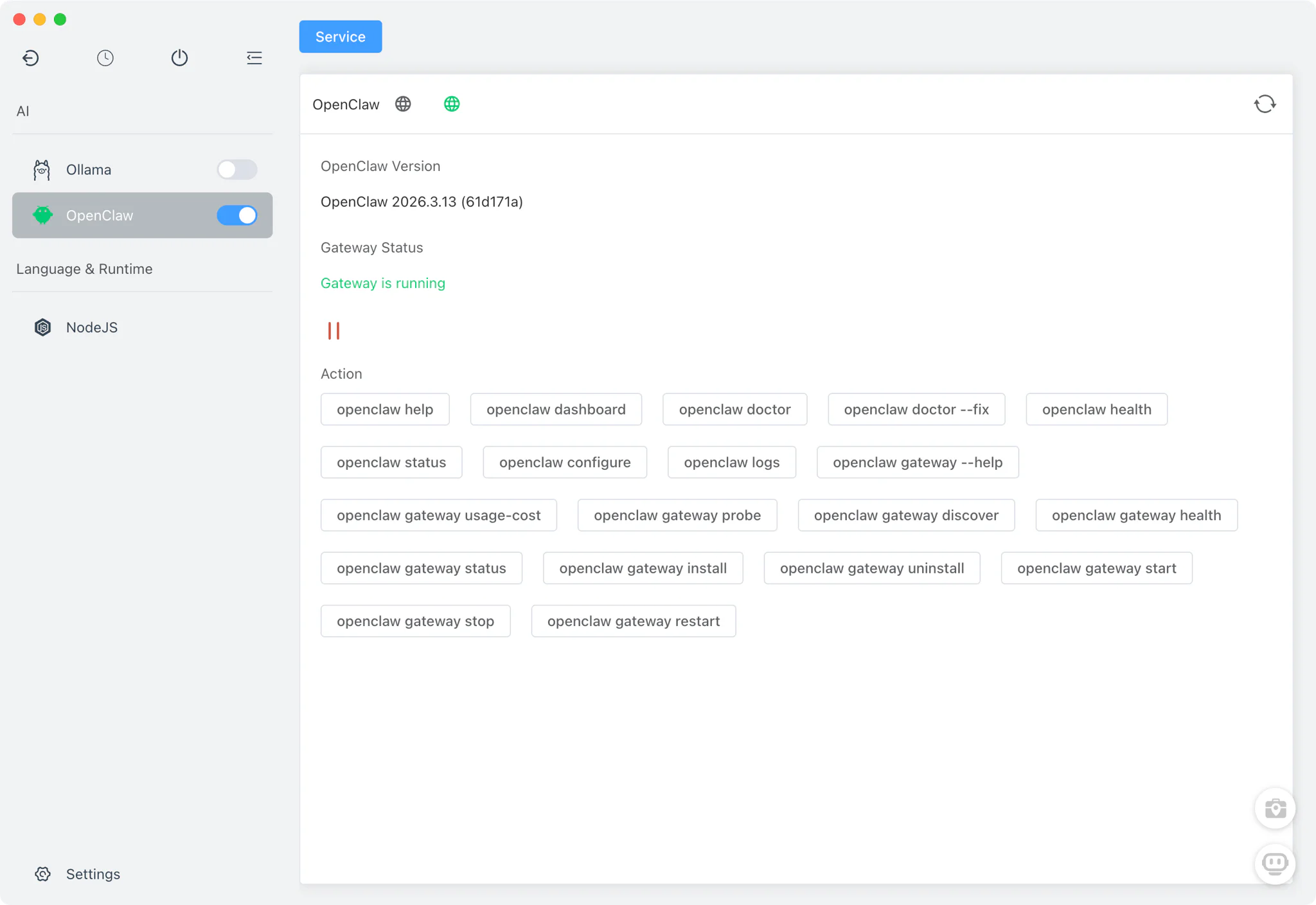
- In FlyEnv's Library, locate OpenClaw
- Click Install and follow the prompts
- Once installed, click Start to launch the gateway
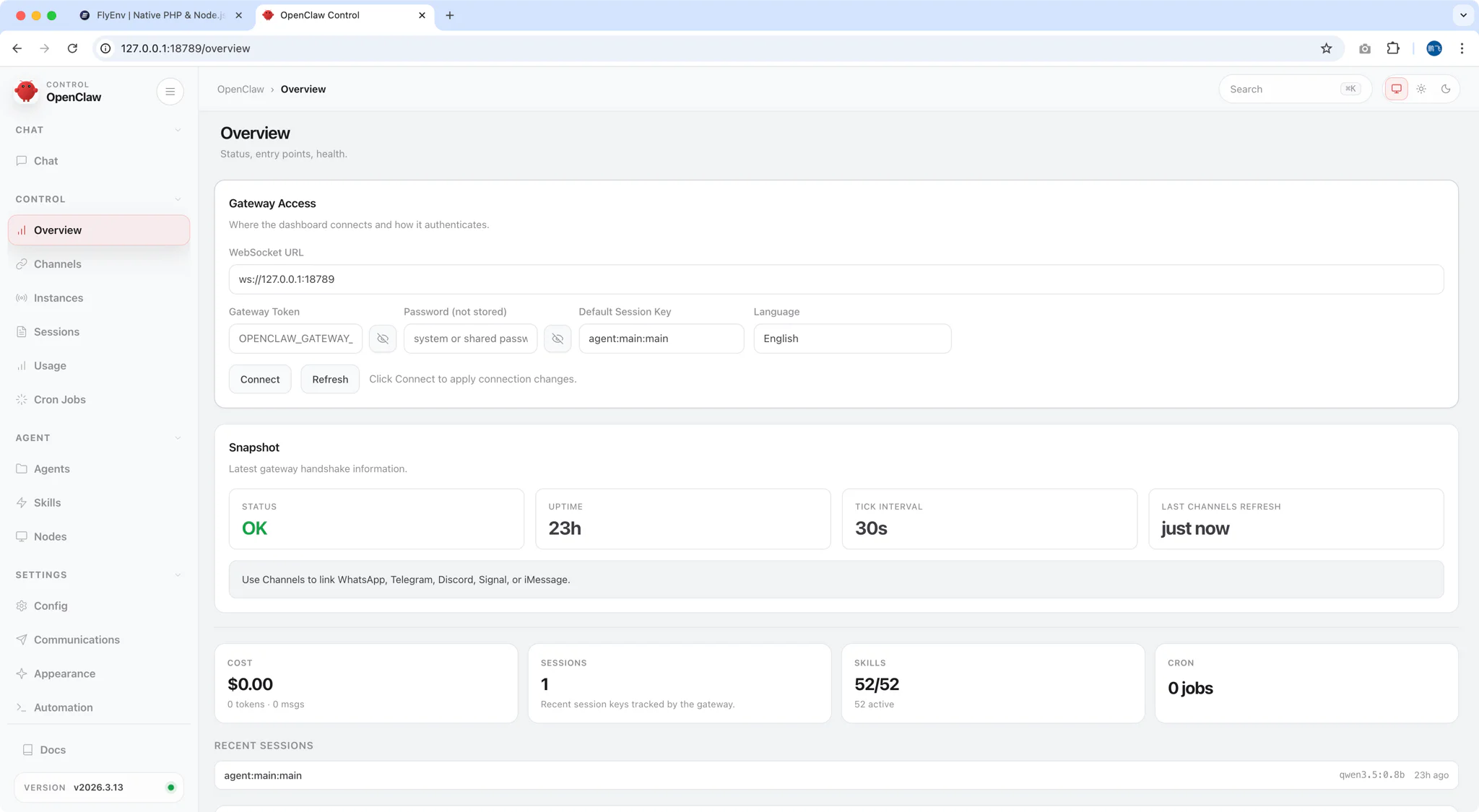
OpenClaw will start a local gateway (default: http://127.0.0.1:18789/) and open the Control UI in your browser.
Step 5: Configure OpenClaw to Use Ollama
Initial Setup Wizard
When you first open OpenClaw, you'll see a security warning—read it carefully. Unlike simple chatbots, OpenClaw can:
- Read and write files on your computer
- Execute system commands
- Send messages on your behalf
- Make web requests
This power requires responsible configuration.
Configuration Steps
- Choose Quick Start (recommended for beginners)
- Select AI Provider: Choose Ollama or Local / Self-Hosted
- Enter API Endpoint:
http://localhost:11434 - Select Your Model: Choose the model you downloaded (e.g.,
qwen2.5-coder:7b) - Complete Setup
Verify Configuration
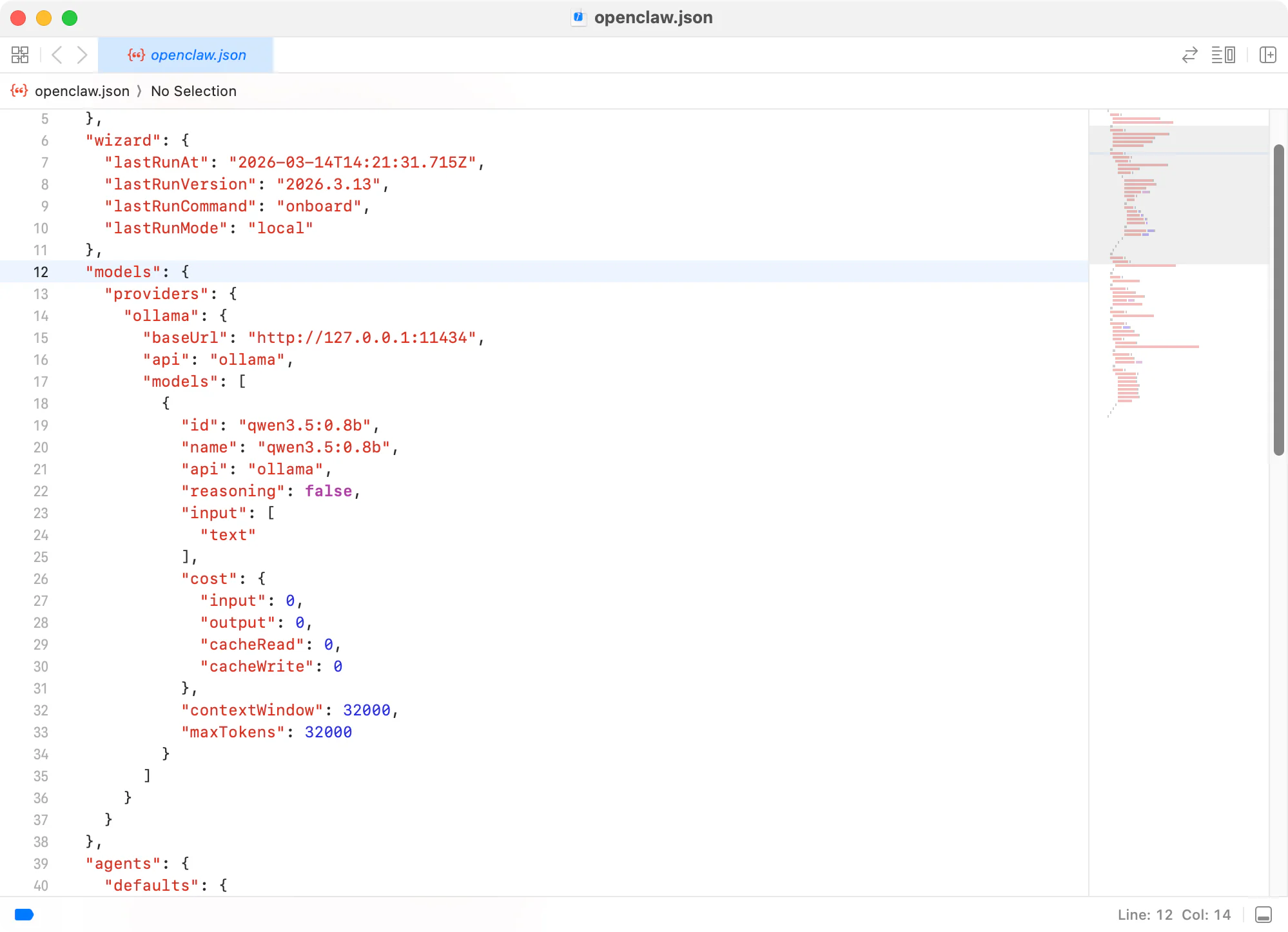
Your configuration file is stored at ~/.openclaw/openclaw.json. A basic setup looks like:
{
   "models": {
      "providers": {
         "ollama": {
            "baseUrl": "http://127.0.0.1:11434",
            "api": "ollama",
            "models": [
               {
                  "id": "qwen3.5:0.8b",
                  "name": "qwen3.5:0.8b",
                  "api": "ollama",
                  "reasoning": false,
                  "input": [
                     "text"
                  ],
                  "cost": {
                     "input": 0,
                     "output": 0,
                     "cacheRead": 0,
                     "cacheWrite": 0
                  },
                  "contextWindow": 32000,
                  "maxTokens": 32000
               }
            ]
         }
      }
   }
}
Step 6: Connect Messaging Apps
Now connect your favorite messaging platforms to control the agent remotely:
Option A: WhatsApp
openclaw configure --section channelsSelect WhatsApp and scan the QR code with your phone.
Option B: Telegram
- Create a bot via @BotFather
- Add the bot token to OpenClaw configuration
- Start chatting with your bot
Option C: Discord
- Create a Discord application
- Add the bot token to OpenClaw
- Invite the bot to your server
Security Tip: Start with allowFrom whitelist to limit who can interact with your agent:
{
  "channels": {
    "whatsapp": {
      "allowFrom": ["+15555550123"],
      "groups": {
        "*": { "requireMention": true }
      }
    }
  },
  "messages": {
    "groupChat": {
      "mentionPatterns": ["@openclaw"]
    }
  }
}
Step 7: Test Your AI Agent
Send your first command via your connected messaging app:
Example Commands
| Command | What It Does |
|---|---|
Read the file ~/Documents/notes.txt | Reads and summarizes the file |
Create a Python script that calculates fibonacci numbers | Writes code to a file |
List files in the current directory | Executes shell command |
Send an email to [email protected] about the project update | Drafts and sends email |
From Terminal
You can also interact via the built-in TUI (Terminal User Interface):
openclawOr use the web dashboard at http://127.0.0.1:18789/
![Agent Interaction ]
Advanced: Hybrid Cloud + Local Setup
For complex tasks, combine local and cloud models:
{
  "agents": {
    "defaults": {
      "model": {
        "primary": "ollama/qwen2.5-coder:32b",
        "thinking": "anthropic/claude-sonnet-4-20250514"
      }
    }
  }
}- Local model: Handles file reads, simple edits, routine tasks (saves API costs)
- Cloud model: Handles debugging, architecture, complex reasoning (used sparingly)
This hybrid approach can reduce API bills from $20-50/day to $2-5/day.
Troubleshooting
| Issue | Solution |
|---|---|
| Model loads slowly or crashes | Out of memory. Use a smaller quantization: qwen2.5-coder:7b-q4_K_M |
| Tool calls fail | Set "reasoning": false in config. Some local models struggle with tool format |
| Context window errors | Local models have smaller context. Set accurate contextWindow in config |
| Cannot connect to Ollama | Verify Ollama is running: curl http://localhost:11434/api/tags |
| Messages not received | Check channel configuration and permissions |
Security Best Practices
⚠️ OpenClaw is intentionally powerful and broadly permissioned.
- Run in isolated environment when possible
- Use allowFrom whitelist to limit message sources
- Review third-party skills before enabling
- Require mentions in group chats to prevent accidental triggers
- Regularly audit file system permissions
Video Walkthrough
Prefer watching? See Build a 100% Local AI Agent: OpenClaw + Ollama Setup via FlyEnv In 5 Minutes in action:
Frequently Asked Questions (FAQ)
Q: Is OpenClaw free to use after setup?
A: Yes. OpenClaw is open source (MIT license), and Ollama runs models locally. Once configured, there are no ongoing API fees or usage limits. Your only cost is the electricity to run your computer.
Q: Does my data leave my machine?
A: No. When using OpenClaw + Ollama, all processing happens locally. Your messages, files, and data never leave your hardware unless you explicitly enable cloud integrations.
Q: What hardware do I need?
A: Minimum 8GB RAM for smaller models (7B parameters). For comfortable usage:
- Basic: 8GB RAM + CPU (7B models)
- Recommended: 16GB RAM + GPU (13B models)
- Power user: 32GB+ RAM + high-end GPU (32B+ models)
Q: Can I use cloud models if needed?
A: Yes. OpenClaw supports hybrid setups. You can configure local models as default and switch to cloud providers (Anthropic, OpenAI, etc.) for specific tasks that require more capability.
Q: How does this compare to ChatGPT with plugins?
A: ChatGPT plugins run in OpenAI's cloud environment. OpenClaw runs on your hardware with direct file system access. It's faster for local operations, works offline, and maintains complete privacy. However, it requires more technical setup.
Q: Is this suitable for business/enterprise use?
A: OpenClaw is currently experimental software. While powerful, it lacks enterprise-grade safeguards. It's best suited for personal use, development environments, or carefully controlled scenarios where you understand and accept the security implications.
Next Steps
Now that you have a self-hosted AI agent running:
- Set Up Local Email Testing with Mailpit - Test email automation workflows
- Expose Localhost with Cloudflare Tunnel - Access your agent remotely from anywhere
- Build More AI Agents - Explore other AI tools in the FlyEnv ecosystem
Ready to build your personal AI agent? Download FlyEnv today and join the self-hosted AI revolution—zero API costs, complete privacy, unlimited possibilities.